Why walking-pad steps don't show in the Fitness app
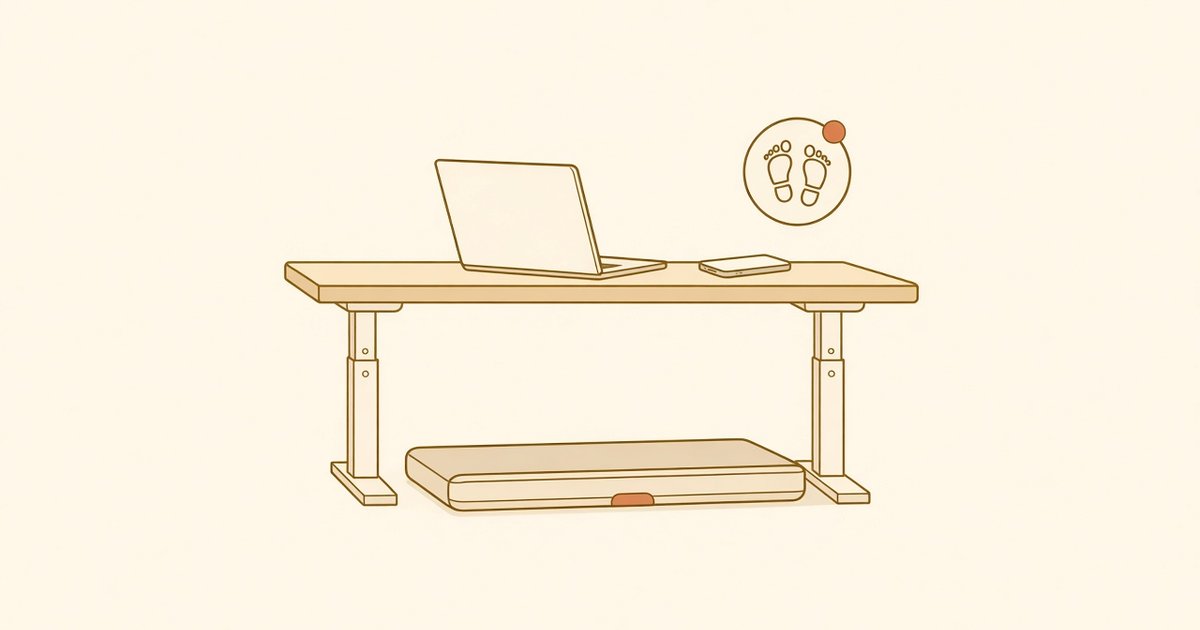
You walked for 45 minutes on the pad under your desk. Your iPhone and Apple Watch show a few hundred steps. This is a common mismatch, and it usually has nothing to do with lost data. Three things cause it: how your devices count steps, how Apple Health chooses between sources, and which numbers each Apple app displays. To estimate what a session should add up to, use the walking pad steps calculator.
1. Your iPhone and Watch count motion, not the belt
The Health app counts steps using the device you carry or wear (Apple Support). A walking pad breaks the usual assumptions:
- iPhone on the desk. If the phone sits on the desk instead of in your pocket, it is not moving with you, so it has little or nothing to count.
- Apple Watch with hands on the keyboard or handle. Apple says the Activity app “relies on arm motion and an accelerometer to track movement,” and advises letting the arm with the Watch swing naturally while walking (Apple Support). Typing or holding a rail removes that arm swing.
- Research agrees: in one study, wrist-worn trackers including Apple Watch Series 4 undercounted treadmill and stroller walking with hands fixed by as much as about 94% (Journal for the Measurement of Physical Behaviour, 2020).
2. Health picks one source at a time — and Apple devices usually win
When several apps and devices record steps, Health doesn't add them together. Apple's documentation says that “if multiple sources contribute the same data type, the data source at the top will take priority over others” (Apple Support). By default, the order is:
- Data you enter manually
- Data from your iPhone, iPad, and Apple Watch
- Data from apps and Bluetooth devices
So when a walking-pad app writes steps for the same stretch of time as your Watch, the Watch's low count can take priority. The app's steps are still saved in Health as records; they just aren't the ones used in your daily total.
How to change it (Apple Support):
- Open Health → Browse → Activity → Steps.
- Scroll down and tap Data Sources & Access.
- Tap Edit, then drag your walking-pad app above iPhone and Apple Watch.
- Tap Done.
Edge cases remain. If a session only partly overlaps with Watch data, for example if you kept walking after you stopped the session, the daily total can still look a little off.
3. The Fitness app is not the Health app
Health and Fitness show different things. Health is where data from all your sources is combined. The Fitness app on iPhone focuses on Activity rings, workouts, and trends (Apple Support). In practice, many people find that the step and distance figures in Fitness reflect only what their iPhone and Watch counted, even when an app has written steps to Health. If you're checking whether pad steps landed, look in Health → Steps, not in Fitness.
Rings are also separate from steps. Move tracks active calories and Exercise tracks minutes of brisk activity (Apple Support). Adding steps alone won't close a ring.
What actually helps
- Put the phone in your pocket while you walk, if that's comfortable.
- Let your Watch arm swing, or start an Indoor Walk workout on the Watch so it can also use heart rate. Apple recommends choosing the workout type that matches what you're doing (Apple Support). Even then, the step count may stay low.
- Record the session from the belt itself with an app that estimates steps from distance, then move that app to the top of your Steps sources.
How DeskWalker handles it
DeskWalker estimates your steps from your pad's distance and your stride, so it doesn't depend on your phone or wrist moving. With Sync workouts to Apple Health on, each session is saved as a workout in Health, with distance and calories. To add the estimated steps to your daily total, also turn on Sync estimated steps (it's off by default). Then go to Health → Browse → Activity → Steps → Data Sources & Access → Edit and drag DeskWalker above iPhone and Apple Watch.
General information, not medical advice. Step counts from any device or app are estimates.
Sources
- Apple Support — Manage Health data on your iPhone, iPad, or Apple Watch. support.apple.com/en-us/108779
- Apple Support — Get the most accurate measurements using your Apple Watch. support.apple.com/en-us/105002
- Apple Support — Track daily activity with Apple Watch. support.apple.com/en-gb/108359
- Step-Counting Validity of Wrist-Worn Activity Monitors During Activities With Fixed Upper Extremities. Journal for the Measurement of Physical Behaviour. 2020. doi:10.1123/jmpb.2019-0055
General information for education, not medical advice. Talk to a clinician about health decisions.